

Merging two images is a very common need in everyday image work.
For example, you may need to make a before-and-after comparison, combine two photos, create a product comparison image, or organize two screenshots into one image to share on social media, blogs, or chat apps.
In the past, many people used professional tools like Photoshop for these tasks. But if you only want to merge two images, downloading and installing pro software is not only troublesome, it also takes time to learn.
Now you can use Merge-Pictures.com directly—no software needed—to merge two images online. The whole process is simple, free to use, and exports without watermarks.
What Is Image Merging?
Image merging, also called image stitching, combines two or more separate images onto the same canvas.
Depending on your needs, you can choose different layouts, such as:
- Horizontal merge: images side by side, great for comparisons.
- Vertical merge: images stacked, great for screenshots and long images.
- Multi-image layout: combine several images in a grid or custom layout.
- Adjust spacing: add or remove gaps between images for the look you want.
- Custom rounded corners and borders: make the result fit social media or web use.
So image merging is not just “putting two images together”—you can tune the final visual result for different scenarios.
How to Merge Two Images Online?
Merging images with Merge-Pictures.com requires no complex editing experience. Follow the actual workflow below.
Step 1: Upload Two Images
First open Merge-Pictures.com and enter the online image merge tool.
In the upload area you can click to select images, or simply drag images into the page.
After selecting the two images to merge, the tool automatically generates a preview.
Supported image sources include:
- Windows PC
- Mac
- Laptop
- iPhone
- Android phone
If you want a simple comparison image, just prepare the two images you need to compare.
Step 2: Adjust Image Order
After uploading, you can reorder the images for the final effect.
For example, to make a “before vs after” comparison, put the original image on the left or top and the edited one on the right or bottom.
If the current order is wrong, you can move the images.
This step matters most for before/after comparisons, product comparisons, and design comparisons.
Step 3: Choose a Layout
Next, choose the merge direction you need.
Horizontal Merge
Horizontal merge places the two images on the same line:

This is ideal for:
- Before/after comparisons
- Product comparisons
- Portrait comparisons
- Design comparisons
- Side-by-side photos
Vertical Merge
Vertical merge stacks the images:
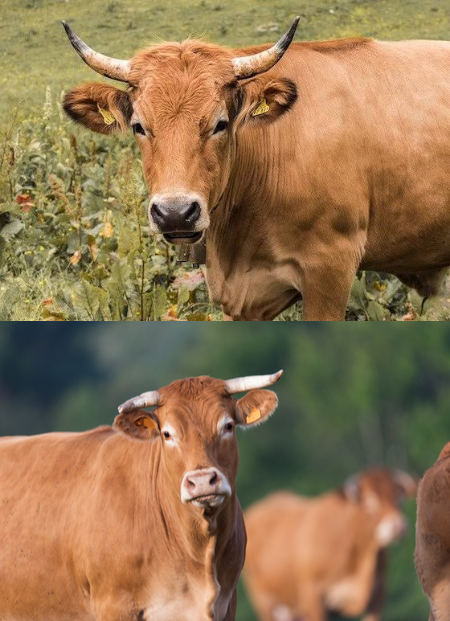
This is ideal for:
- Phone screenshot stitching
- Web screenshot organizing
- Tutorial images
- Long images
- Content consolidation
If unsure which to pick, judge by aspect ratio. Wide images suit left/right; tall screenshots suit top/bottom.
Step 4: Adjust Spacing and Layout
For a tidier result, further adjust the spacing between images and the overall layout.
For example, add whitespace to clearly separate images, or reduce spacing so they look like one image.
Depending on your scenario, you can also adjust:
- Image spacing
- Border
- Rounded corners
- Background
- Layout direction
- Output size
For simple merges, you usually get good results with the default settings.
Step 5: Preview the Result
After setup, view the final result directly.
Before downloading, check:
- Is the image order correct?
- Does the layout direction match your need?
- Are the images fully visible?
- Is the spacing appropriate?
- Does the final size fit the use case?
If it’s not ideal, go back and adjust—no need to re-upload.
Step 6: Download the Merged Image
When satisfied with the preview, click merge or export.
The tool generates one new image from the two. After processing, save it to your device.
The whole process needs no Photoshop, GIMP, or other desktop editors.
If you just need a quick merge, this online method is usually more convenient.
Common Uses for Merging Two Images
Online merging isn’t just for simple photo joins—it’s useful in many real scenarios.
1. Before/After Comparisons
This is one of the most common uses.
For example:
- Before vs after renovation
- Before vs after retouching
- Before vs after product upgrade
- Before vs after fitness
- Before vs after website redesign
Putting two images together makes the change more intuitive.
2. Merge Phone Screenshots
If you have several consecutive screenshots, stack them top-to-bottom into one complete image.
This is great for:
- App tutorials
- Web operation guides
- Chat history display
- Product instructions
- Step-by-step operations
It’s very convenient.
3. Social Media Images
When posting to Instagram, Facebook, Pinterest, X, or other platforms, you may want to combine several photos into one.
Stitching reduces image count while keeping content focused.
4. Product Comparison Images
E-commerce sellers can use merging for product comparison images.
For example, place two colors, two models, or before/after upgrades side by side so users understand the differences easily.
5. Organize Work Materials
At work you may need two screenshots, two visual assets, or two designs in one image.
After merging, it’s easier to:
- Send to colleagues
- Insert into PPT
- Add to documents
- Publish to a blog
- Save to project files
Why Use Merge-Pictures.com?
If you only need a quick merge, there’s no need to install complex pro software for a simple task.
Merge-Pictures.com fits users who need fast image stitching.
Free to Use
Basic merging needs no pro software purchase or complex editing subscription.
Online
Open a browser and operate—no desktop program to install.
No Watermark
Exported images have no forced platform watermark, suitable for personal and work use.
Simple to Use
Upload, adjust layout, preview, then export.
Even without editing experience, you can finish quickly.
Works on Desktop and Mobile
Whether PC, tablet, or phone, any modern browser lets you merge images.
Does Merging Reduce Image Quality?
Merging itself does not necessarily lower image quality noticeably.
The result mainly depends on the original resolution, output format, and export settings.
With high-resolution originals and reasonable output settings, you usually get a clear result.
For print, design, or professional use, use high-resolution originals when possible.
Can You Merge More Than Two Images?
If you need three, four, or more images, use the multi-image layout feature.
Choose a layout by image count and scenario:
- 2 images: left/right or top/bottom
- 3 images: horizontal row or grid
- 4 images: 2 × 2 grid
- More images: grid stitching as needed
This is more flexible than handling two at a time, great for photo walls, product showcases, and social collages.
Is Merging Images Online Safe?
For ordinary photos, screenshots, or public assets, online tools are usually very convenient.
But if images contain IDs, bank cards, passwords, private files, or other sensitive info, confirm the privacy and data policy before using any online service.
For very sensitive images, local processing is usually the safer choice.
FAQ
How do I combine two images into one?
Open Merge-Pictures.com, upload two images, choose horizontal or vertical layout, adjust order and spacing, preview, then export.
Can two images be joined side by side?
Yes. Choose horizontal layout to place them left/right—perfect for comparisons.
Can two images be joined top and bottom?
Yes. Choose vertical layout to stack them—ideal for screenshots and tutorials.
Do I need to install software to merge?
No. The online tool works in a browser—no Photoshop or other editors needed.
Is there a watermark on merged images?
No. Merge-Pictures.com does not add a forced watermark to exported images.
Can I merge two images on my phone?
Yes. Any modern mobile browser can open Merge-Pictures.com to upload and process images.
Summary
Merging two images is actually not complicated.
If you just need to quickly combine two photos, screenshots, or other images, there’s no need to learn complex pro editors.
With Merge-Pictures.com you can upload online, reorder, choose horizontal or vertical layout, set spacing, preview, then download.
Whether making photo comparisons, phone screenshots, product showcases, tutorials, or social content, an online merge tool helps you finish faster.
If your need grows from “two images” to many, keep using the multi-image layout to pick the best grid or stitching for your count.